Credentials Rotation
Security best practices and provider requirements (such as Apple's APNs certificates) often require you to rotate your push notification credentials.
AppAmbit implements a safe rotation system that allows you to stage, test, and activate new credentials without disrupting your service.
Why Rotate Credentials?
There are two main reasons to rotate your credentials:
- Expiration: APNs SSL certificates expire annually. If they expire, push notifications will stop working for iOS devices.
- Security: Regular rotation minimizes the risk of compromised keys being used maliciously.
Credential States
To ensure zero downtime, AppAmbit manages credentials using specific states:
- Active (Green): The credential currently being used to send notifications.
- Staged (Blue): A new credential that has been uploaded but is not yet active. It is waiting for you to test and activate it.
- Pending Delete: An old credential that has been replaced. It remains in a "grace period" for 1 hour before being permanently deleted, allowing for a quick rollback if needed.
Rotation Process
The rotation process in AppAmbit follows a Stage → Test → Activate flow.
Step 1: Upload New Credential (Staging)
- Navigate to your App's Info page and click Edit.
- Scroll to the Push Notifications Credentials section.
- Upload your new credential file (
.jsonfor FCM or.p8for APNs). - Click Save changes.
What happens next?
Your current credential remains active. The new file is uploaded as "Staged", and you will be redirected to the App Info page to verify it.
Step 2: Review and Test
On the App Info page, you will see a blue "Action Required" banner.
This indicates that you have a new credential waiting to be activated.
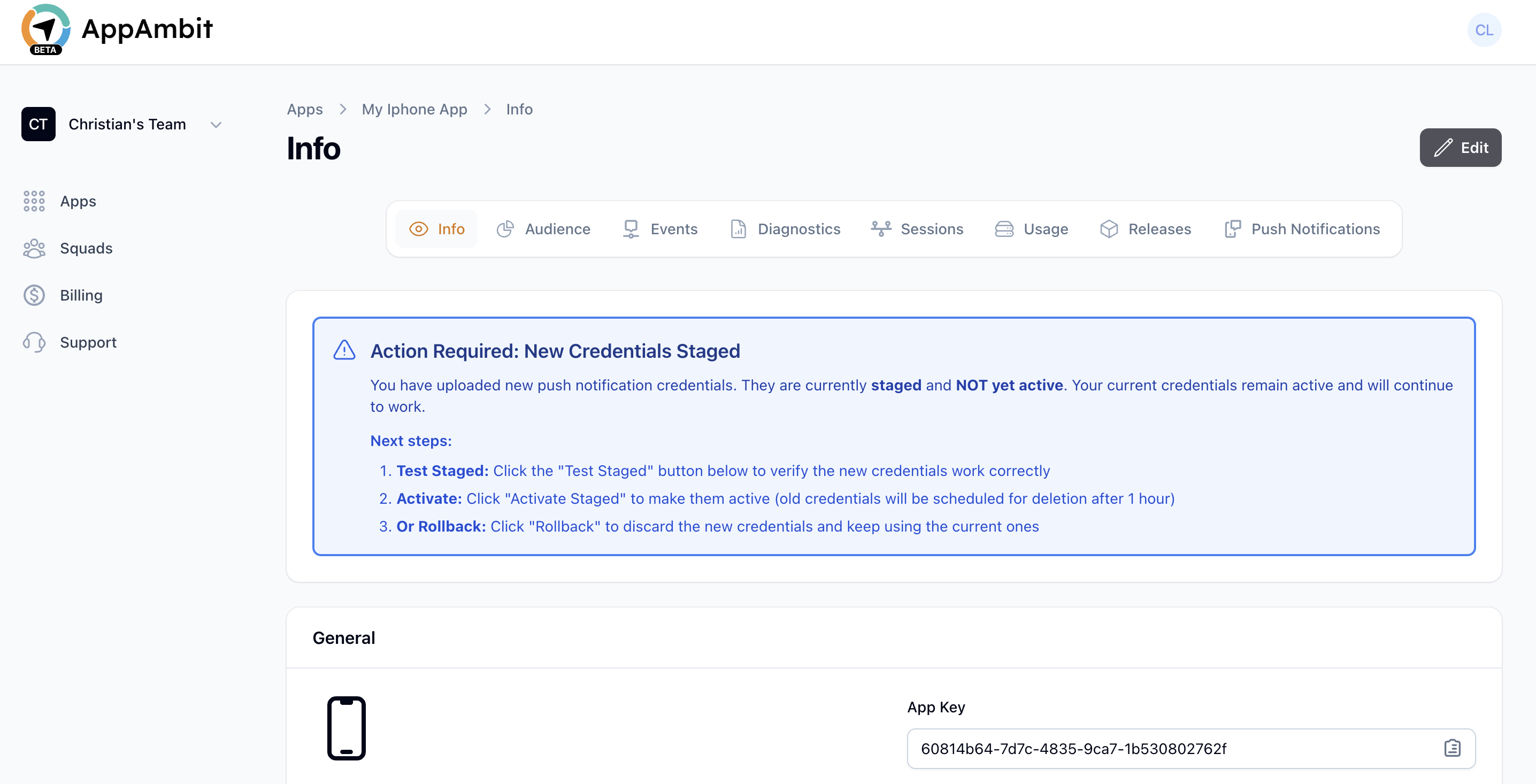
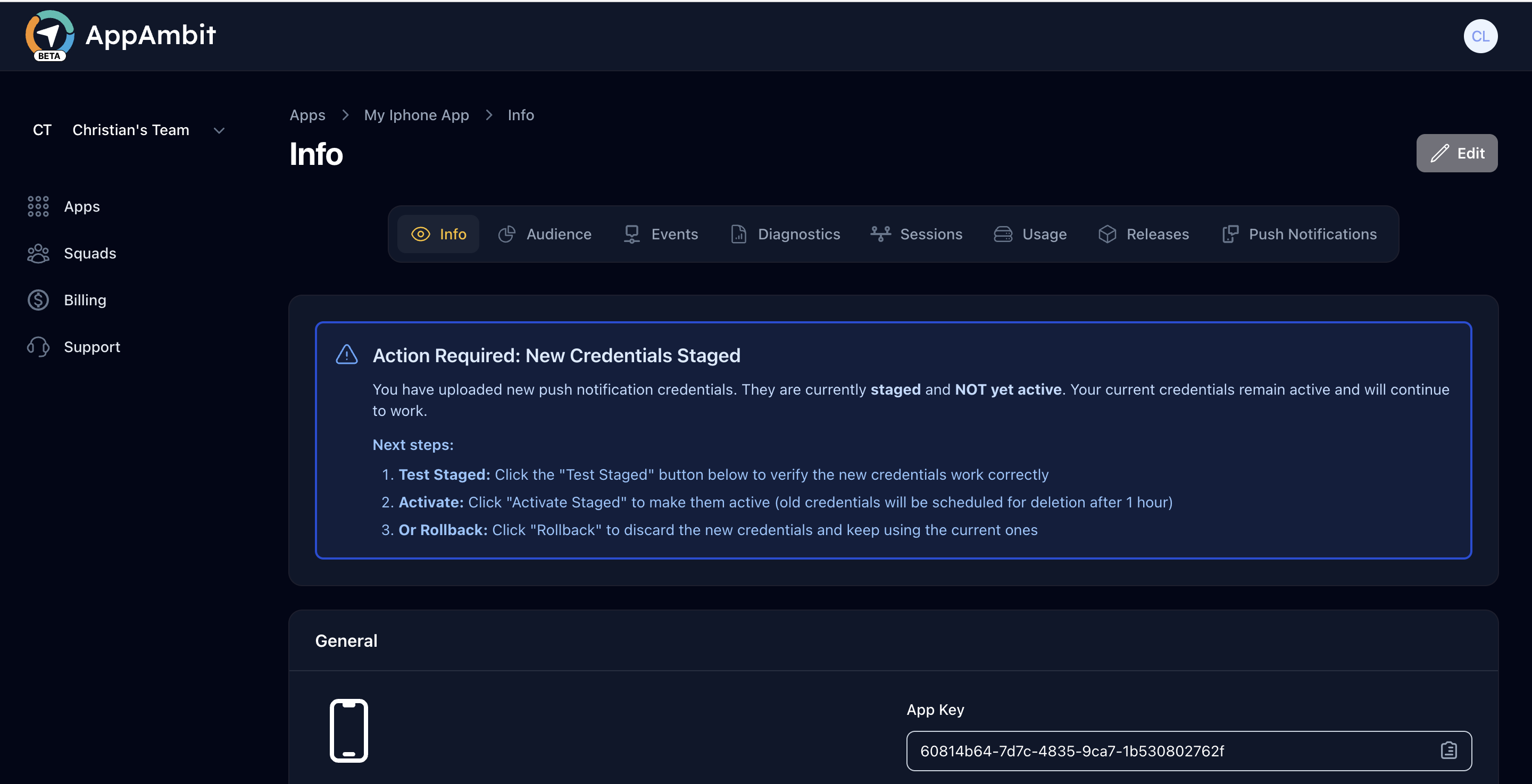
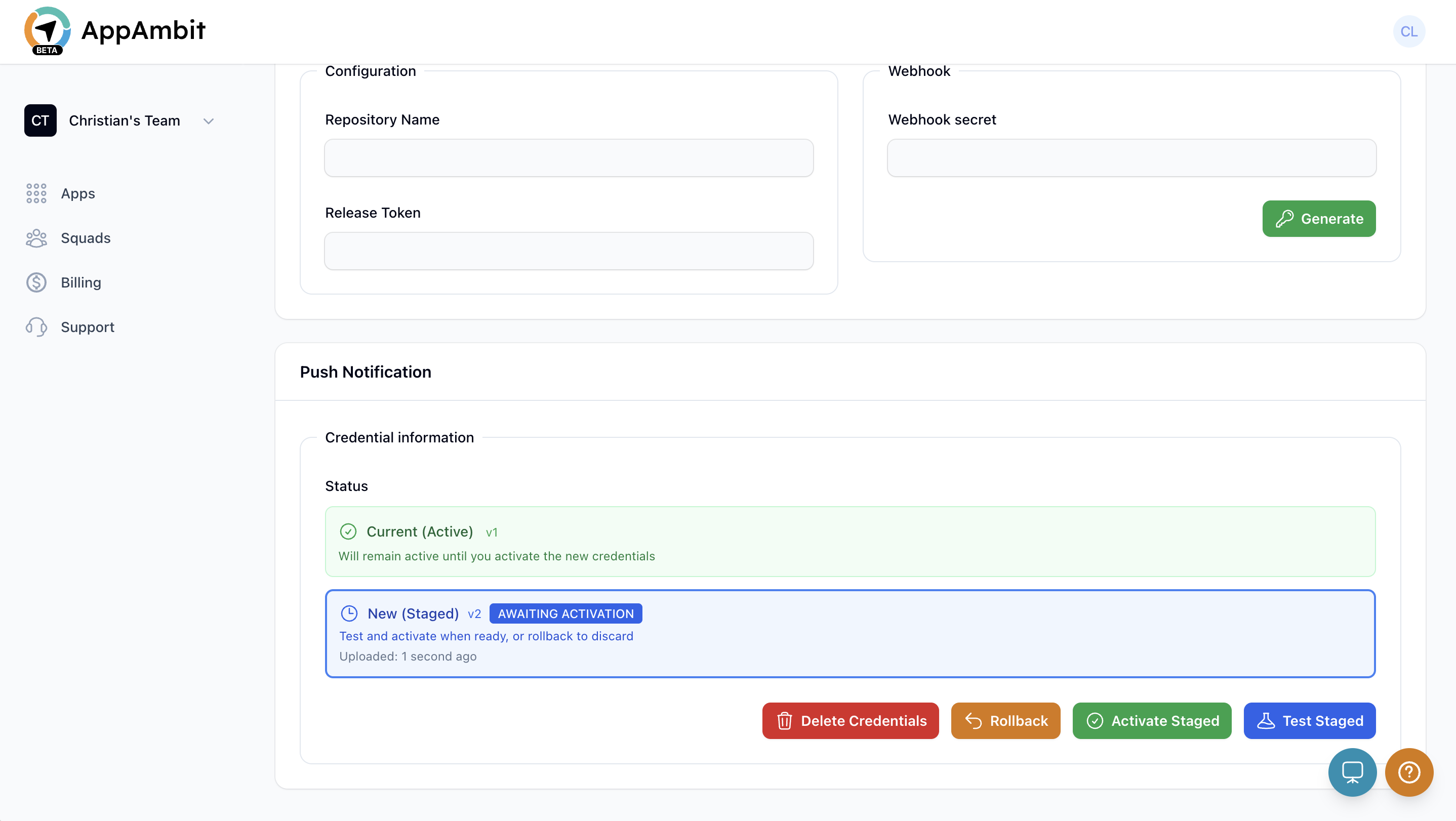
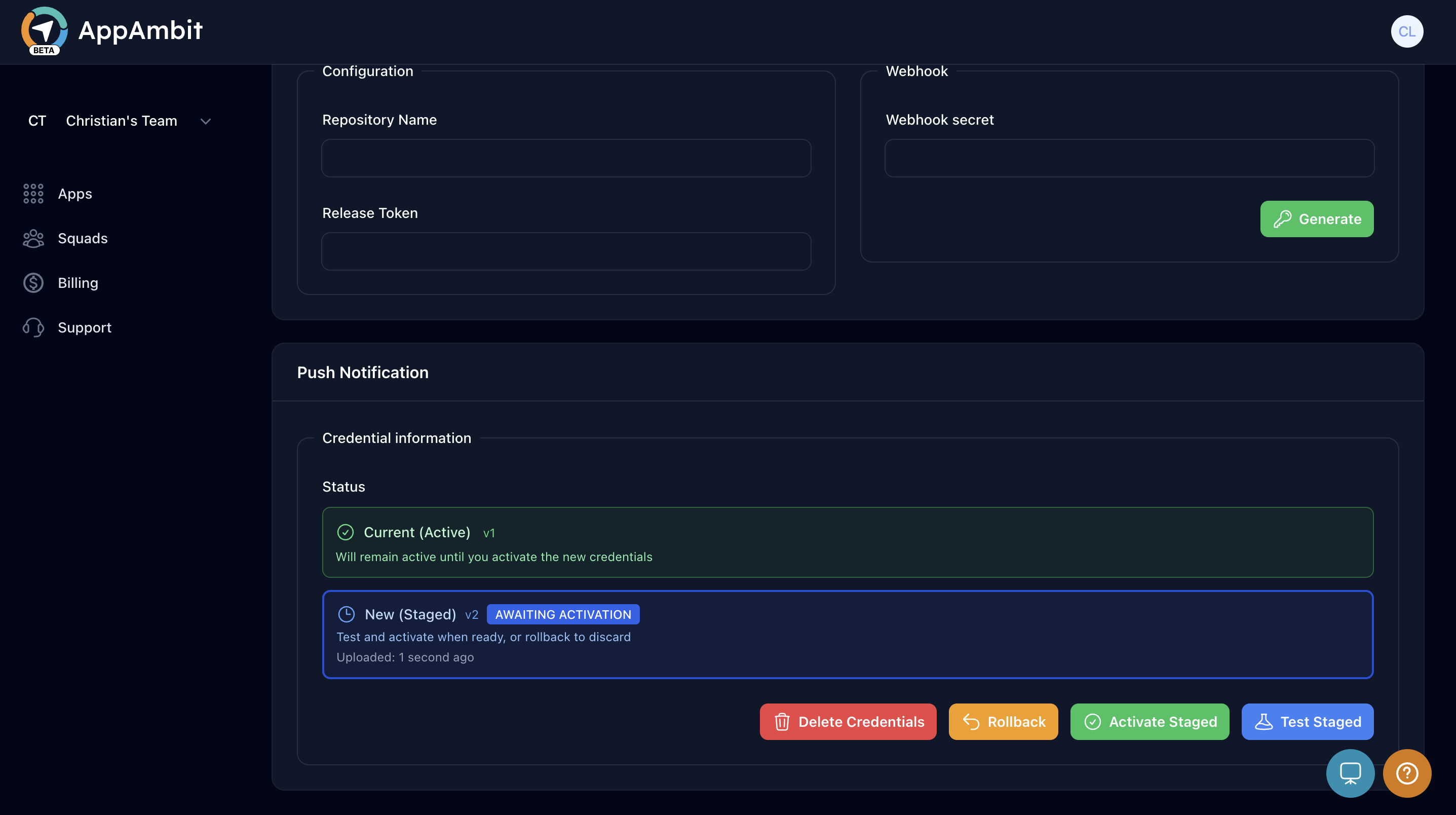
You will see two credentials listed: 1. Current (Active): Your old, working credential. 2. New (Staged): The new one you just uploaded.
Available Actions:
- Test Staged: Validates the new credential by connecting to the provider (Firebase or Apple) without affecting your live users.
- Activate Staged: Promotes the new credential to "Active" and retires the old one.
- Rollback: Discards the new credential and cancels the rotation.
Step 3: Activate the New Credential
Once you have successfully tested the staged credential:
- Click Activate Staged.
- Confirm the action.
Result: - The Staged credential becomes Active. - The old Active credential moves to Pending Delete. - The blue banner disappears.
Step 4: Rollback (If needed)
If you uploaded the wrong file or changed your mind, you can click Rollback while the credential is still in the "Staged" state. This will delete the new file and leave your original credential untouched.
Safety & Cleanup
Grace Period
When you activate a new credential, the old one is not deleted immediately. It is kept for 1 hour in a pending_delete state. This ensures that if any issues arise immediately after rotation, our support team can help recover the previous state.
Automatic Cleanup
After the 1-hour grace period, the old credential file is permanently deleted from our secure storage and database to maintain security hygiene.
Next Step: Create and Send Notifications
Your push notification setup is now complete.
You can now create, schedule, and send notifications to your users.
👉 Continue to:
Create and Send Notifications
Summary
AppAmbit's rotation system ensures that you never accidentally break your push notification service. Always remember to Test your staged credentials before activating them.