Remote Config
AppAmbit Remote Config lets your app fetch and apply configuration values at runtime without requiring a new release. This guide shows how to configure Remote Config in the AppAmbit console, initialize the SDK, fetch values, and apply them in your app.
Overview
Remote Config is a central store for runtime settings you can update remotely to control features, content, and behavior. It enables safer rollouts, faster iteration, and targeted changes across environments, user segments, and app versions.
Common use cases:
- Feature flags and gradual rollouts
- Dynamic UI text and content updates
- A/B testing and experiments
- Targeted configuration by environment, user segment, or app version
Setup Remote Config in AppAmbit platform
To set up Remote Config, log in to the AppAmbit platform, create a new app or use your existing app and navigate to the Remote Config section. Here, you can create a new Remote Config project, define parameters, and set their values.
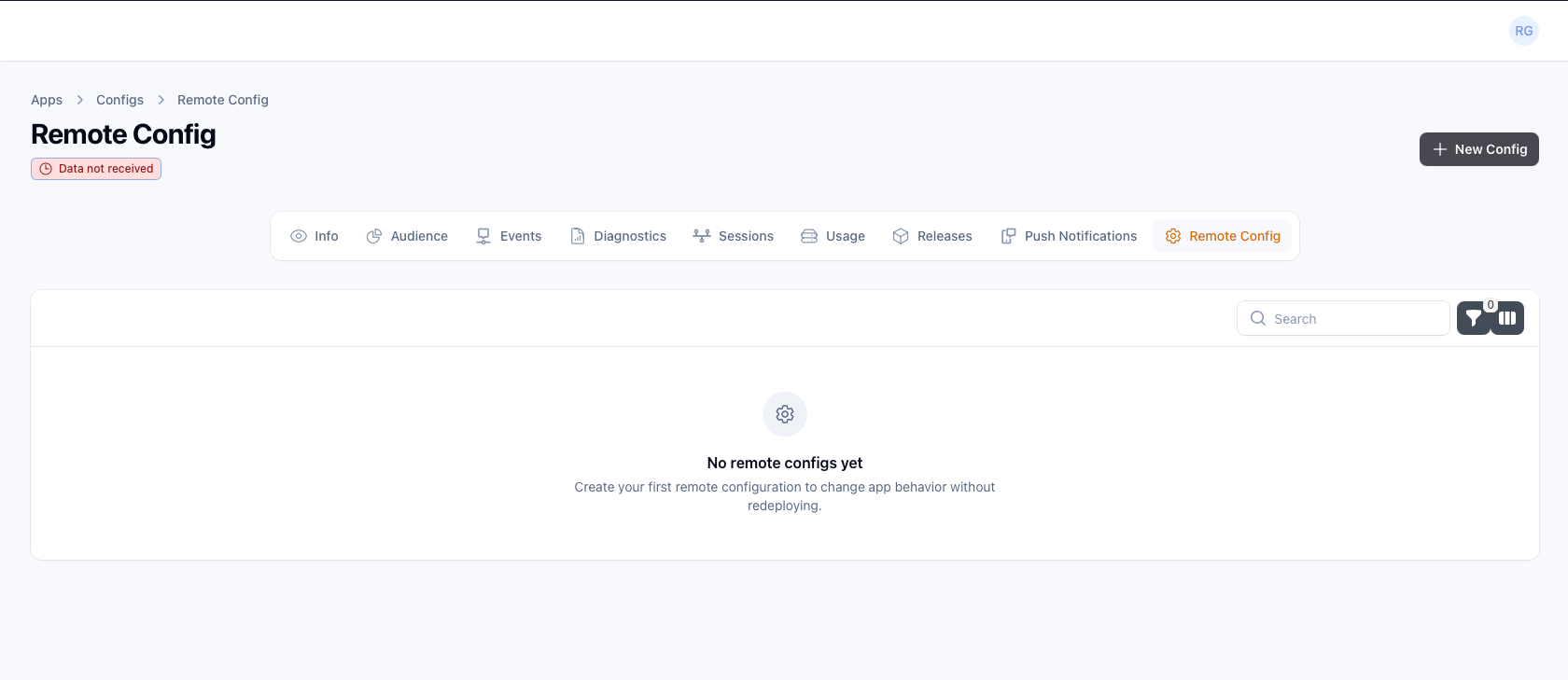
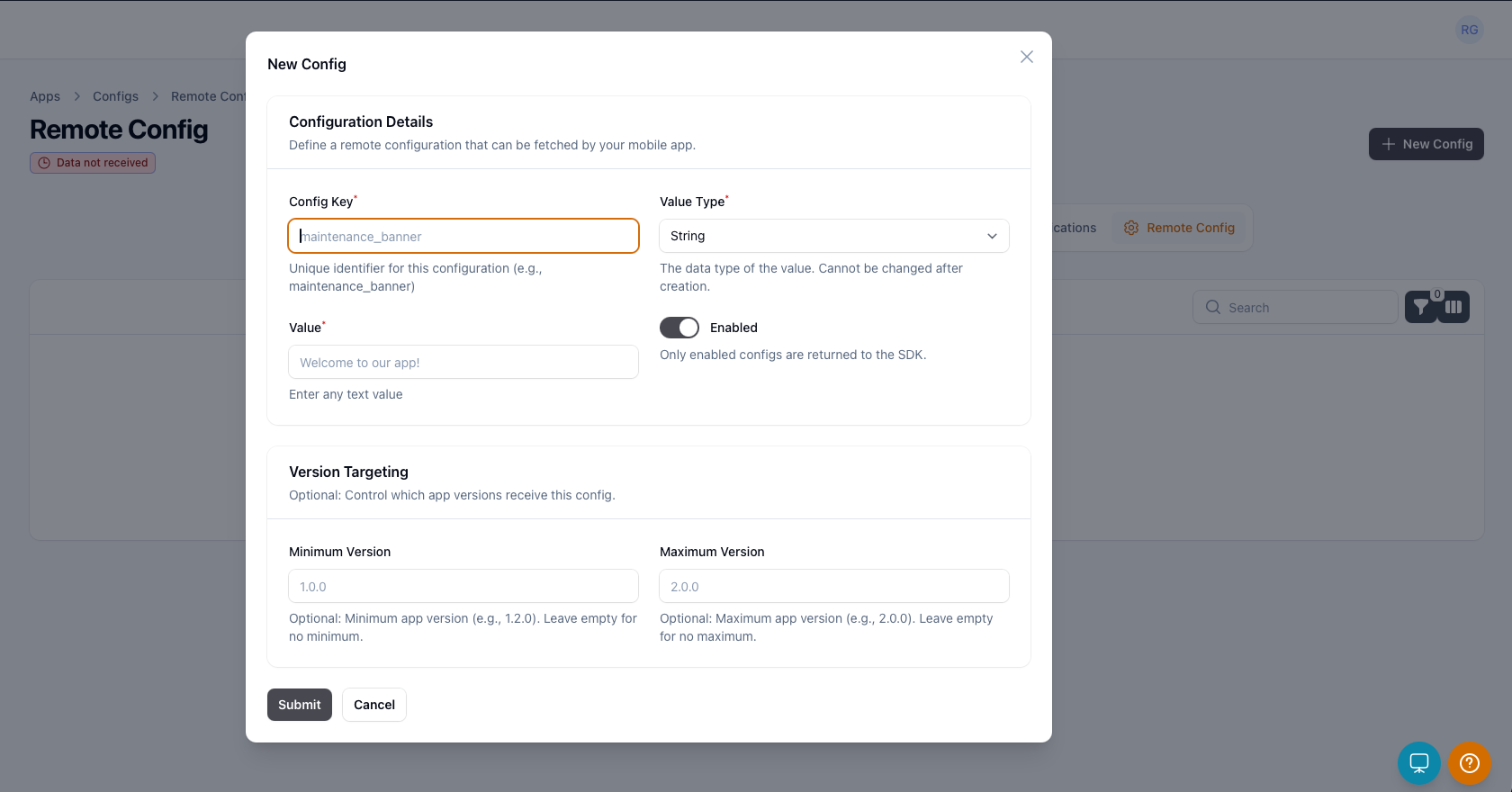
Configure your Remote Config parameters by adding keys, values, and targeting rules as needed. Once you have set up your parameters, you can publish the configuration to make it available to your app.
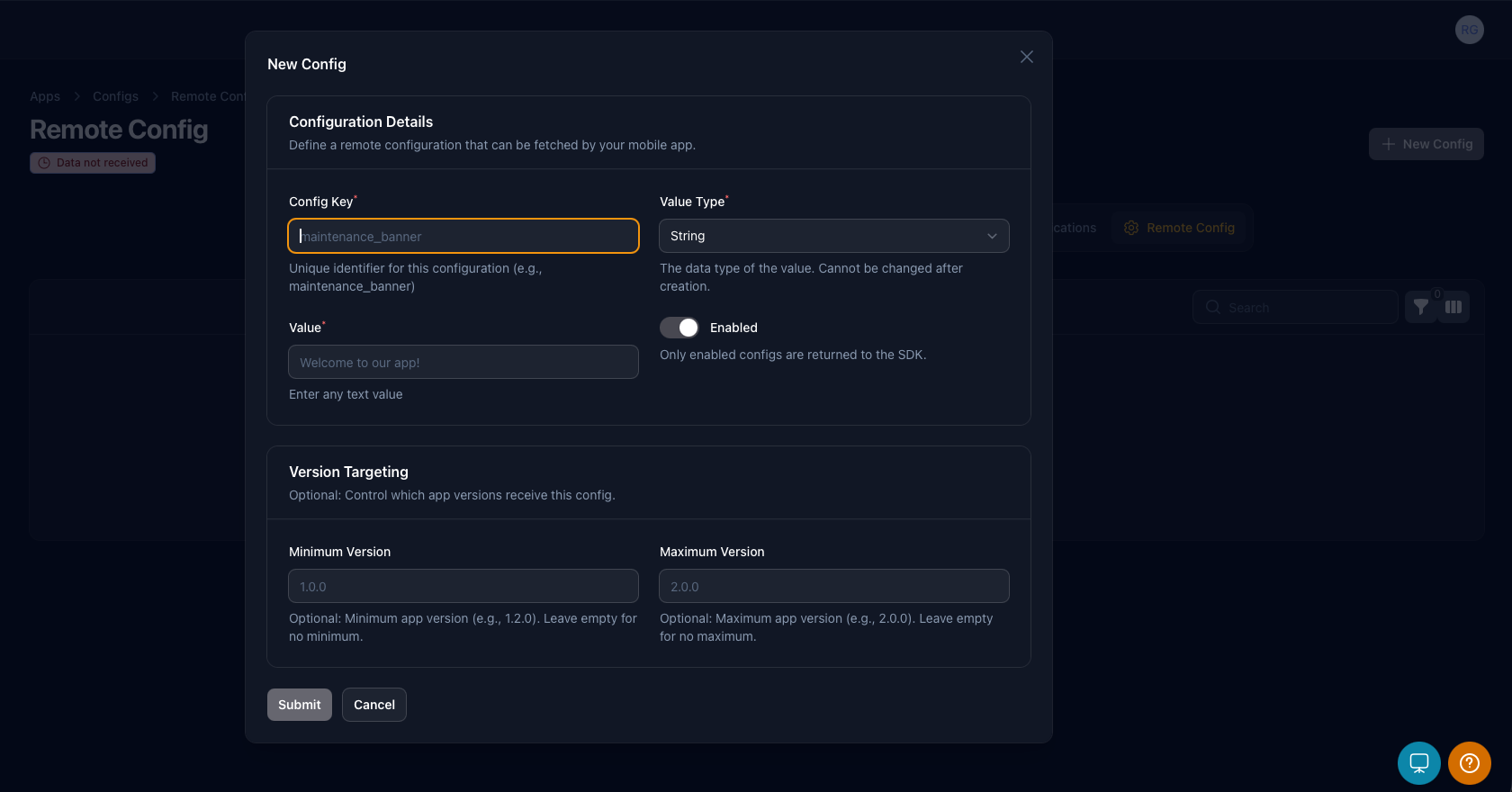
- Key: The unique identifier for the parameter.
- Value: The value associated with the key, which can be of various data types (e
- Value type: The data type of the value (e.g., string, long, boolean, double).
- Enabled: A toggle to enable or disable the parameter.
- Version targeting: Specify which app versions the parameter applies to.
Enable Remote Config in your app
To use Remote Config, you need to initialize the AppAmbit SDK in your app. This typically involves adding the SDK to your project and configuring it with your AppAmbit credentials.
Initialization Steps
If you haven't already, follow the SDK setup guide to integrate the AppAmbit SDK into your app. Once the SDK is initialized, you can start using Remote Config features.
public static MauiApp CreateMauiApp()
{
    RemoteConfig.enable();
    var builder = MauiApp.CreateBuilder();
    builder
        .UseMauiApp<App>()
        .UseAppAmbit("<YOUR-APPKEY>");

    return builder.Build();
}
import SwiftUI
import AppAmbit;

@main
struct AppAmbitTestingApp: App {
    init() {
        RemoteConfig.enable()
        AppAmbit.start(appKey: "<YOUR-APPKEY>")
    }
    var body: some Scene {
        WindowGroup {
            ContentView()
        }
    }
}
#import "ViewController.h"
#import "AppAmbitSdk/AppAmbitSdk-Swift.h"

- (void)viewDidLoad {
    [super viewDidLoad];
    [RemoteConfig enable];
    [AppAmbit startWithAppKey:@"<YOUR-APPKEY>"];
}
import com.appambit.sdk.AppAmbit;
import com.appambit.sdk.RemoteConfig;

@Override
protected void onCreate(Bundle savedInstanceState) {
    RemoteConfig.enable();
    AppAmbit.start(getApplicationContext(), "<YOUR-APPKEY>");
    ...
}
import com.appambit.sdk.RemoteConfig;
import com.appambit.sdk.AppAmbit;

override fun onCreate(savedInstanceState: Bundle?) {
    super.onCreate(savedInstanceState)
    RemoteConfig.enable()
    AppAmbit.start(this, "<YOUR-APPKEY>")
    ...
}
void main() async {
    WidgetsFlutterBinding.ensureInitialized();

    AppAmbitSdk.enableConfig();
    AppAmbitSdk.start(appKey: '<YOUR-APPKEY>');

    runApp(const MyApp());
}
import * as AppAmbit from "appambit";

export default function App() {
    AppAmbit.enableConfig();
    AppAmbit.start("<YOUR-APPKEY>");
}
Get remote values to use in your app
To retrieve a value, call the method shown in the following example, specifying the expected data type and passing the parameter key as an argument.
// String
string variable = RemoteConfig.GetString("<key_name>");
// Long
long variable = RemoteConfig.GetLong("<key_name>");
// Double
double variable = RemoteConfig.GetDouble("<key_name>");
// Boolean
bool variable = RemoteConfig.GetBoolean("<key_name>");
// String
variable = RemoteConfig.getString("<key_name>")
// Long
variable = RemoteConfig.getLong("<key_name>")
// Double
variable = RemoteConfig.getDouble("<key_name>")
// Boolean
variable = RemoteConfig.getBoolean("<key_name>")
// String
NSString* variable = [RemoteConfig getString:@"<key_name>"];
// Long
long long variable = [RemoteConfig getLong:@"<key_name>"];
// Double
double variable = [RemoteConfig getDouble:@"<key_name>"];
// Boolean
BOOL variable = [RemoteConfig getBoolean:@"<key_name>"];
// String
val variable = RemoteConfig.getString("<key_name>")
// Long
val variable = RemoteConfig.getLong("<key_name>")
// Double
val variable = RemoteConfig.getDouble("<key_name>")
// Boolean
val variable = RemoteConfig.getBoolean("<key_name>")
// String
String variable = RemoteConfig.getString("<key_name>");
// Long
long variable = RemoteConfig.getLong("<key_name>");
// Double
double variable = RemoteConfig.getDouble("<key_name>");
// Boolean
boolean variable = RemoteConfig.getBoolean("<key_name>");
// String
String variable = await AppAmbitSdk.getString("<key_name>");
// Long
int variable = await AppAmbitSdk.getLong("<key_name>");
// Double
double variable = await AppAmbitSdk.getDouble("<key_name>");
// Boolean
bool variable = await AppAmbitSdk.getBoolean("<key_name>");
// String
const variable = await AppAmbit.getString("<key_name>");
// Long
const variable = await AppAmbit.getLong("<key_name>");
// Double
const variable = await AppAmbit.getDouble("<key_name>");
// Boolean
const variable = await AppAmbit.getBoolean("<key_name>");
Troubleshooting
- If you don't see updated values in your app, ensure that you have called the
RemoteConfig.enable()method correctly and that there are no network issues preventing the app from reaching the AppAmbit service. - Check the AppAmbit console to verify that your Remote Config parameters are set up correctly and that the changes have been published.
Note
Since Remote Config values are not usually updated very frequently, they will start to be displayed 5 minutes after being updated.